From the lecture schedule page, click the link to
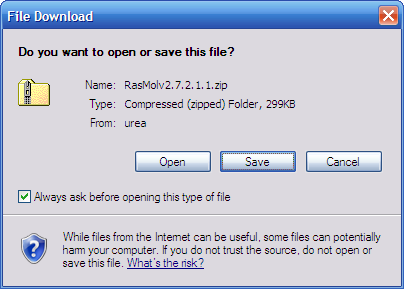
RasMol v2.7.2.1.1. Most likely you will be prompted about
what to do with the file (the Internet Explorer version is below). Save the file to a location
on your computer that you can remember (maybe with other CHEM 351 files).
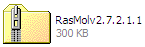
Find the file in the location where it was saved (the file may look something like this).
Open the file. This should open a new folder with two files inside. Copy both files (see below) and
paste them to a location (folder) that you can remember (maybe with other CHEM 351 files).
That's all there is to it, no installation wizard or other challenges. Just remember where you put the files.
To open RasMol, double click the raswin.exe icon.
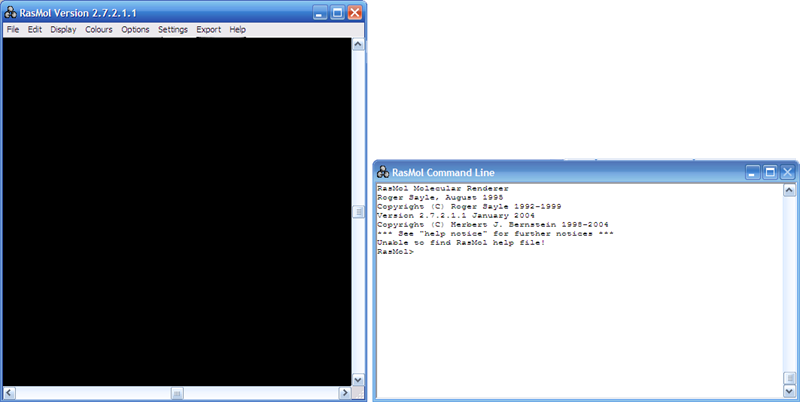
The program opens in two windows. The larger window is the graphics port (where you'll see the
molecules, on the left below). This window has some functionality through the menus, but the
menus do not represent a complete set of features. The other window is the command line (note that
this window is minimized when the application starts, on the right below). This
window is where you can enter text commands and access all the options for the program.
Please be sure to place any files you'd like to use with RasMol
(structure data or script files) in the same folder as
the program (this is also the folder where output files will be found). This will allow the
program (and you) to easily find the files you are using in and with RasMol.